In this article
USB-C tells you whether the plug fits. It does not tell you how quickly files will transfer, which displays will work or how much charging power the connection can provide.
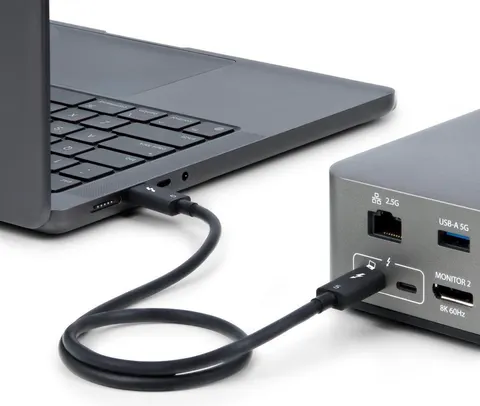
Thunderbolt is a connection standard that uses USB-C on generations 3, 4 and 5. A Thunderbolt cable is therefore also a USB-C cable. The useful question is which capabilities the port, cable and connected device share.
Compare the connection standards
These are headline link rates, not promised file-copy speeds. Storage, software and other traffic can reduce the throughput you see.
| Connection | Headline data link rate | What to check |
|---|---|---|
| USB 2.0 | 480 Mbps | A charging cable may support only this data rate. |
| USB 3.2 | 5, 10 or 20 Gbps | The exact mode must be supported at both ends. |
| USB4, original specification | 20 or 40 Gbps | Check the product's stated speed and supported features. |
| USB4 Version 2.0 | Up to 80 Gbps; optional 120/40 Gbps asymmetric operation | Requires compatible equipment. |
| Thunderbolt 3 | Up to 40 Gbps | Cable choice and host capabilities matter. |
| Thunderbolt 4 | 40 Gbps | Certification sets requirements beyond headline speed. |
| Thunderbolt 5 | 80 Gbps; up to 120 Gbps in one direction with Bandwidth Boost | Boost reallocates bandwidth; the opposite direction has 40 Gbps. |
In everyday terms: the connector is the doorway. The connection standard describes what can travel through it. The actual setup determines what happens on this occasion.
Thunderbolt 4 and 5: what changes?
Thunderbolt 4 retained the 40 Gbps headline rate of Thunderbolt 3 while tightening certification requirements for capabilities such as displays and PCIe data. That makes the specification more predictable, but it does not mean every accessory will run at 40 Gbps or every display combination will work.
Thunderbolt 5 increases the link bandwidth. Its Bandwidth Boost mode is particularly useful for demanding displays. Intel's Thunderbolt 5 announcement explains both the bandwidth allocation and support for passive cables up to one metre.
Display support also depends on the Mac model, dock or adapter, monitor, resolution and refresh rate. A cable cannot add display engines that the computer does not have.
Passive does not mean basic
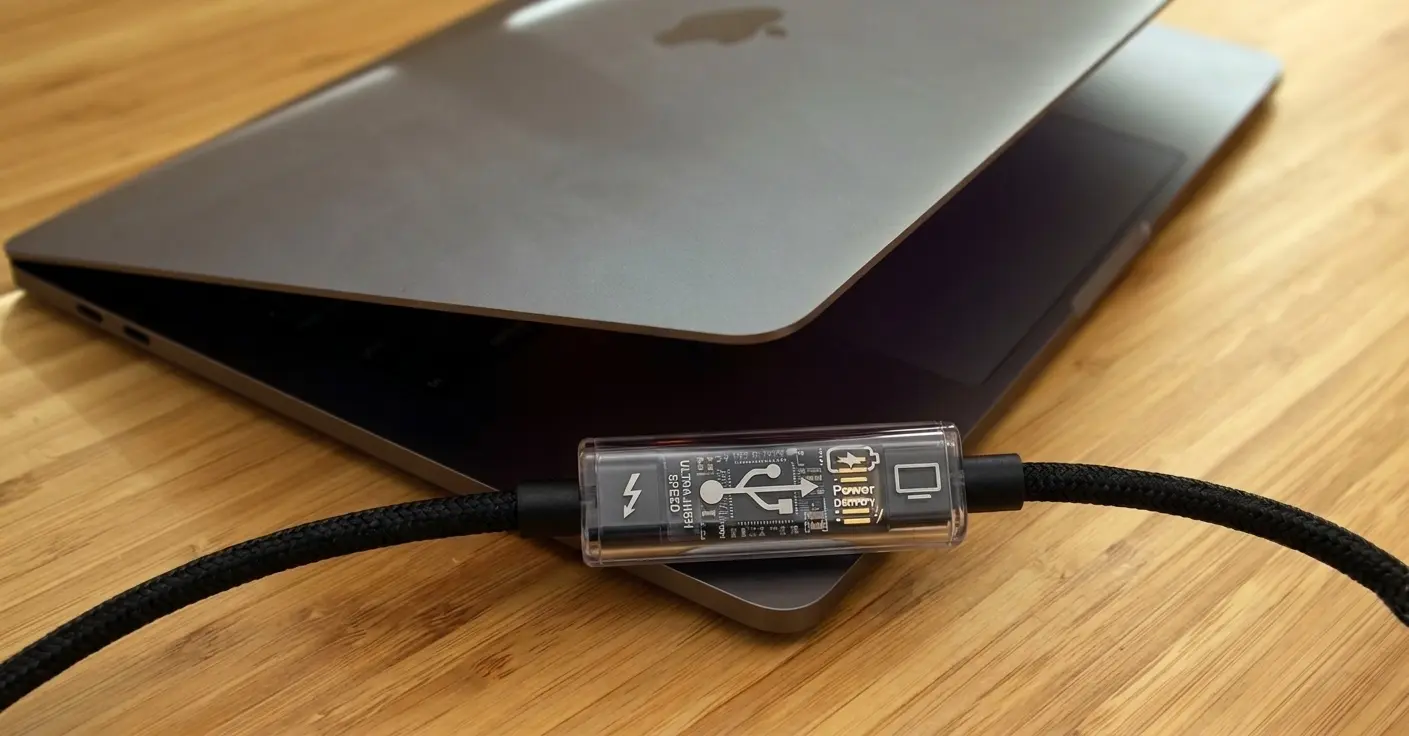
A passive cable carries high-speed signals without electronics that rebuild or boost those signals. It can still contain an e-marker, the small chip that describes the cable's declared capabilities.
An active cable adds signal-conditioning electronics. That can help signals travel farther, but it does not automatically make the cable faster or more compatible with every connection mode.
Thunderbolt cables can be passive or active. Do not infer their construction from the connector, price or generation alone. Check the particular product's certified capabilities and length.
Explore the cable diagram to compare a basic USB 2.0 cable with passive Thunderbolt 4 and 5 examples. The extra signal paths explain why similar-looking cables can behave differently.
Can a 40 Gbps cable work with newer equipment?
Yes, in an appropriate setup. The USB-IF's USB 80Gbps announcement describes the newer signalling running over existing 40 Gbps passive USB-C cables as well as newly defined active cables.
That does not upgrade a Thunderbolt 4 port beyond its 40 Gbps connection capability. It means a compatible passive cable may carry a newer connection between newer endpoints. It also does not turn the cable's original certification into Thunderbolt 5 certification.
A faster negotiated rate than an older cable label is therefore not, by itself, proof of a dishonest label.
Charging and data speed are separate
Watts describe charging power. Gbps describes data rate. Neither number tells you the other.
A 240 W USB-C cable can carry only USB 2.0 data. A fast cable can have a lower power rating. USB Power Delivery support must match across the charger, cable and device; a 240 W rating does not make a Mac draw 240 W.
Avoid treating 100 W as a universal ceiling for every Thunderbolt 4 cable. Check the actual cable's power rating and whether it supports Extended Power Range, the higher-voltage charging mode. Our diagram labels the particular examples being shown.
Compatibility needs more than a matching plug
A USB device connected to a suitable Thunderbolt port normally uses a shared USB mode. A Thunderbolt-only accessory connected to a USB-only port may not work. Some docks offer a USB fallback with fewer features.
USB4 and Thunderbolt overlap, but their names are not interchangeable. Check the host and accessory documentation for Thunderbolt compatibility, supported USB modes and display arrangements. Likewise, an eGPU enclosure being Thunderbolt does not make it supported on every Mac.
A genuine certification mark is useful evidence. Its absence is not a complete specification, and price alone cannot prove a cable is counterfeit.
Check your own setup
WhatCable reads the information macOS exposes about the port, cable and connected equipment. Where available, it compares cable identity with the negotiated link and helps identify which part explains the result.
An e-marker reading is a declaration, while a negotiated link rate describes the connection that formed. Neither is a file-transfer benchmark. Missing identity data may simply mean macOS has not exposed a reading for this setup.
Use the cable library to compare reports, or Pro's connection diagnostics to examine the available figures across your own connection.