In this article
You cannot reliably identify a cable's capabilities from its USB-C plugs. Start with the product information, then compare it with what your Mac can report.
There are three useful sources of evidence. Each answers a different question.
1. Check the markings and product specification
A genuine Thunderbolt mark indicates certification. A speed or wattage marking gives a useful starting point, but charging power and data speed are separate ratings.
Look up the exact model and length, rather than assuming every cable from a brand is identical. Check data rate, charging rating, active or passive construction, and any compatibility restrictions.
A missing mark does not prove a cable is incapable. A printed mark alone cannot authenticate the product either. Keep the packaging or purchase record if you need to identify the precise model.
2. Check the connection in System Information
On a Mac, open System Information and look under Thunderbolt/USB4 and USB, as appropriate for the connected device. The names can vary with the Mac and macOS version.
This helps answer: what connection has formed? A suitable device needs to be attached at the other end. A cable plugged into an empty port is not a speed test.
The result depends on the port, cable and device together. A 10 Gbps drive connected through a faster cable can still report a 10 Gbps connection. That does not establish the cable's maximum capability.
Technical detail: a negotiated link rate is the signalling rate agreed by the connection. It is not the same as sustained file-copy throughput, which also depends on the drive and workload.
3. Read the cable identity with WhatCable
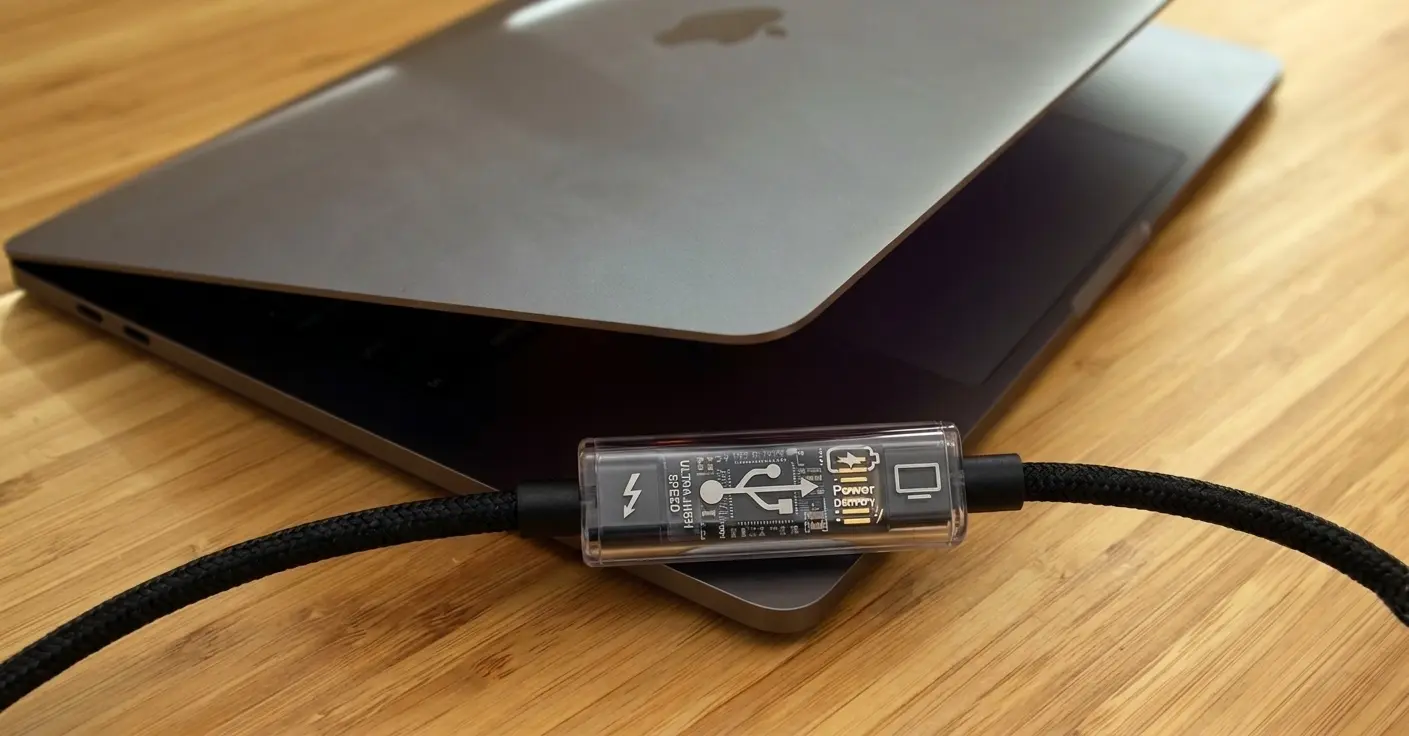
An e-marker is a chip in the plug that reports properties such as current rating, data capability and active/passive construction. Think of it as the cable's digital label.
For standard USB-C to USB-C cable assemblies, full-featured high-speed cables and cables rated for more than 3 A require electronic marking. A basic USB 2.0, 3 A cable need not have it. These rules should not be generalised to every legacy adapter or cable with a USB-C plug at one end.
The reading is only available to software when macOS exposes it. The connected equipment and negotiation can affect that. “No e-marker data” is not the same as “this cable has no e-marker”. Connecting appropriate equipment may expose more information, but a charger with a large number printed on it does not guarantee a particular reading.
WhatCable brings together the available cable identity and connection information. It can help explain a mismatch without assuming that the cable is the cause.
See the e-marker inside the cable diagram, alongside the wires used for power and data.
Read speed, power and construction separately
| What you want to know | Useful evidence |
|---|---|
| Can it charge at the required power? | Cable power rating, charger capabilities and the Mac's charging requirements. |
| Can it carry a fast data link? | Cable specification plus compatible endpoints and the negotiated connection. |
| Is it Thunderbolt certified? | The exact product's certification and manufacturer documentation. |
| Is it active or passive? | The product specification and available identity report. |
| Is it working well in this setup? | Connection behaviour over time, including unexpected drops or changes. |
There is no universal length table that identifies every cable. Construction and supported modes vary between products. Passive Thunderbolt 5 cables are possible: Intel describes support up to one metre. Longer cables may use active electronics.
Nor is an older 40 Gbps passive cable necessarily restricted to 40 Gbps between newer endpoints. USB-IF describes support for existing passive cables with newer 80 Gbps signalling. That is compatible operation, not a new certification for the cable.
Avoid these common misreadings
More watts does not mean faster data. A 240 W cable may still carry only USB 2.0 data.
A lower connection speed does not automatically blame the cable. Check the device, Mac port and any intervening dock first.
Active does not automatically mean better. Active electronics can help with distance, but supported modes still depend on the product.
Price is not an authenticity test. Compare the specification and available evidence rather than declaring a product false because it is inexpensive.
A tidy identity report is not a physical inspection. It cannot establish conductor quality or authenticate the product on its own.
Follow the connection through a dock
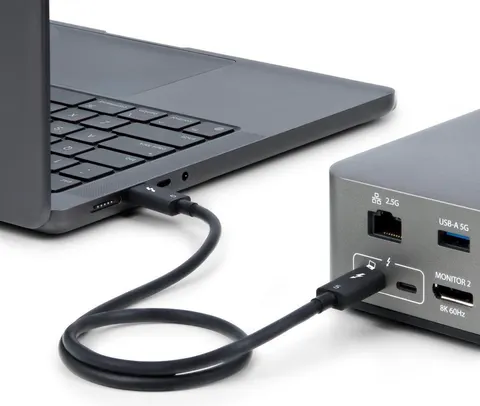
If a drive sits behind a dock, the Mac-to-dock link and dock-to-drive link may use different rates. Devices can also share upstream bandwidth. A single headline cable speed does not describe the entire path.
Pro's connection diagnostics shows the available per-party figures, and WhatCable uses available hub and Thunderbolt topology to help distinguish parts of the chain. The cable library provides community identity reports for comparison.
For the broader background, read Thunderbolt vs USB-C.