In this article
Slow charging can come from the charger, cable, an intervening dock or the Mac's current needs. Start by checking those parts rather than assuming the cable needs replacing.
In macOS Tahoe 26.4 or later, a Slow Charger message can flag a limited charging source. Apple's charging guide explains the indicator. It is a useful prompt to investigate, not a diagnosis of a particular faulty component.
1. Check the charger for your exact Mac
Compare the adapter with Apple's recommended charging equipment. Supplied adapter wattage, fast-charge requirements and the minimum power needed to gain charge under a particular workload are different things.
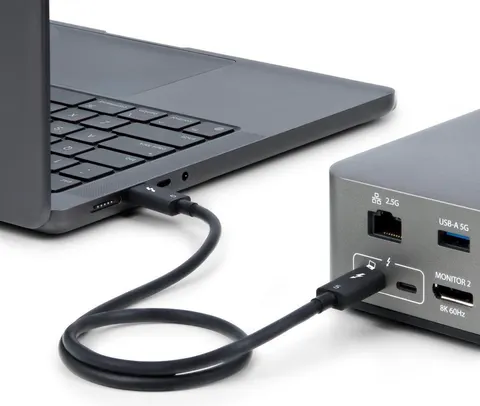
A lower-power adapter may charge the Mac while it is idle yet struggle to keep up during demanding work. On a multi-port charger, plugging in a second device can change the power available. A dock may also provide less power to the laptop than the dock's own supply rating suggests.
For fast charging, use Apple's model-specific combinations. The charging path matters: for example, Apple lists a 140 W adapter and MagSafe 3 for 16-inch MacBook Pro fast charging, with USB-C fast charging using a 240 W cable supported on November 2023 and later 16-inch models. Do not apply one model's requirements to every MacBook.
2. Check whether the cable supports the required power
The cable needs to support the intended charging mode. In standard USB-C Power Delivery, a 3 A cable is limited to 60 W at 20 V. A compliant setup must not negotiate 5 A through it.
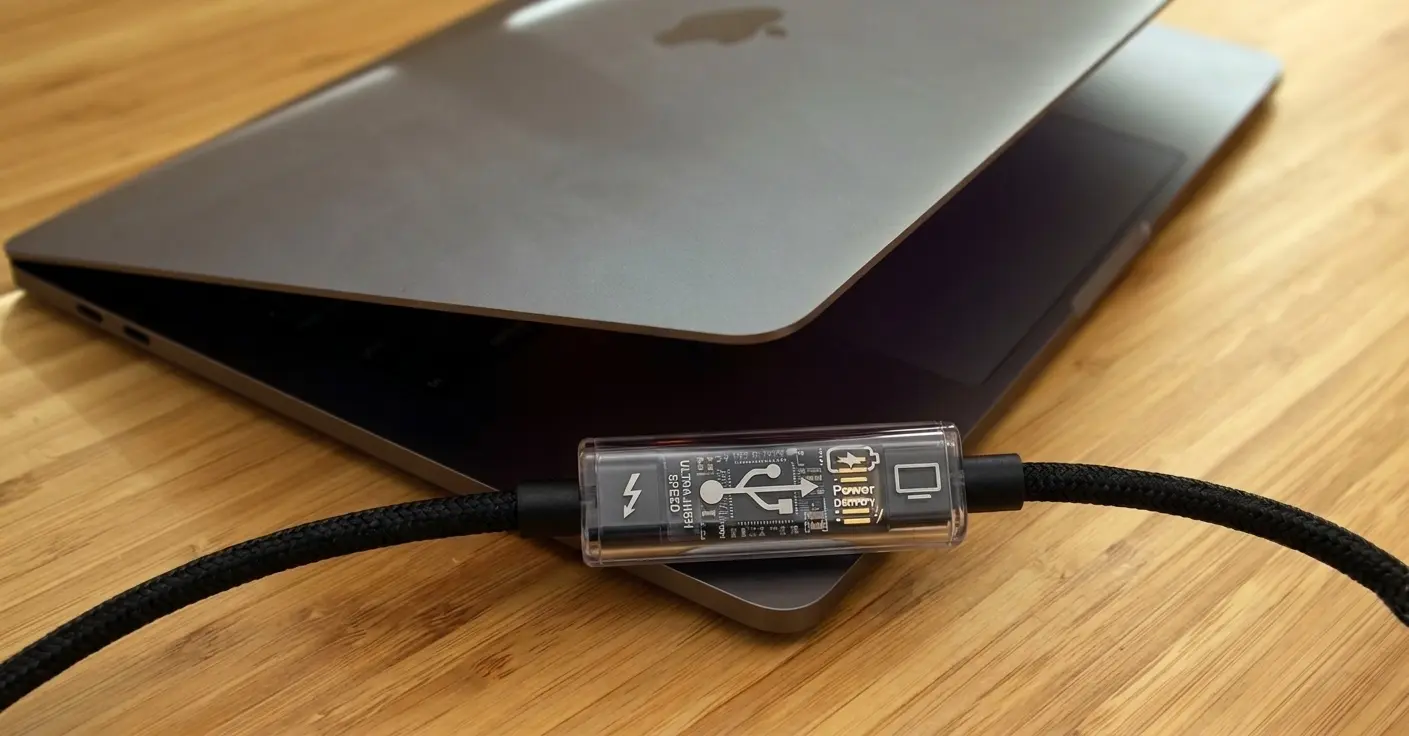
Higher-current cables require an e-marker, the chip that reports their rating. Basic USB 2.0, 3 A cables need not have one. Missing identity data in an app does not prove the chip is absent; macOS may not expose it for that connection.
Technical detail: current and voltage both matter. Extended Power Range (EPR) enables higher-voltage charging with compatible equipment. A 240 W cable rating means support for that class of charging; it does not mean the charger or Mac will use 240 W.
Explore the power wires and identity chip to see their different jobs. High charging power and fast data remain separate capabilities.
3. Check battery state before treating low power as a fault
Charging normally changes as the battery fills. Optimised Battery Charging or a configured charge limit can also pause charging. Read the status shown in the battery menu or Battery settings rather than treating any particular percentage as proof of a fault.
If macOS offers Charge to Full Now, use it when you need a full battery for an upcoming trip. Otherwise an intentional pause may be doing exactly what you want.
4. Compare the charging agreement with actual use
USB Power Delivery is an agreement about available power. The source advertises supported options and the Mac requests an option within the setup's capabilities. The cable constrains which options are permitted.
A 20 V, 5 A agreement allows up to 100 W. It does not mean 100 W is continuously entering the battery. Some power runs the computer, conversion has losses, and battery charging can taper or pause.
This distinction matters when the Mac is busy. It can consume much of the available power, leaving less for the battery. Compare behaviour during a lighter workload before assuming the charger or cable is failing.
5. Isolate a persistent problem
Try a known-good compatible cable, then a suitable charger or another supported port, changing one thing at a time. If a dock is involved, try a direct connection. These comparisons help narrow the cause; a single successful swap is useful evidence rather than a complete hardware diagnosis.
If the connector is damaged, charging repeatedly disconnects or the Mac will not charge, follow Apple's charging troubleshooting guidance. Avoid scraping inside a port or attempting to repair a damaged cable.
How WhatCable helps
WhatCable reads the information your Mac exposes about the port, cable, charger and connection. Where available, it shows the cable rating and negotiated power agreement alongside the system's power state.
That helps answer different questions:
- What is available? The charger's reported capabilities and any dock limits.
- What is permitted? The cable's declared current and voltage rating.
- What was agreed? The active charging agreement.
- What is happening now? Available power readings and battery or charging status.
For example, a 60 W agreement with a higher-rated charger warrants a closer look at the cable, charger profiles, port and device request. It does not prove the cable is the limit by itself. Equally, low actual draw beneath a larger agreement can be normal when the battery is nearly full.
Pro's charging diagnostics helps compare the available figures. The purpose is to explain the connection and identify a useful next check, rather than replace a cable on the strength of one number.