Docs
How to use WhatCable, step by step. Requires a Mac with Apple Silicon (M1 or later) running macOS 14+.
- Getting started
- Everyday use
- WhatCable Pro
- Help & advanced
Install
WhatCable is signed and verified by Apple, so your Mac won't show any security warnings. You need macOS 14 (Sonoma) or later on a Mac with Apple Silicon (any M1, M2, M3, M4, or M5 chip).
Direct download
Download WhatCable.zip from GitHub, unzip it, and drag WhatCable.app into your Applications folder.
Homebrew
If you use Homebrew, one command does everything. This also installs the optional command-line tool.
brew install --cask darrylmorley/whatcable/whatcable
whatcable command-line tool doesn't fit the store's install model. Reading cable data itself works fine either way. It's still signed and verified by Apple, just distributed outside the store.
Getting started
Open WhatCable from your Applications folder. A small icon appears in your menu bar (the row of icons at the top-right of your screen, near the clock and Wi-Fi).
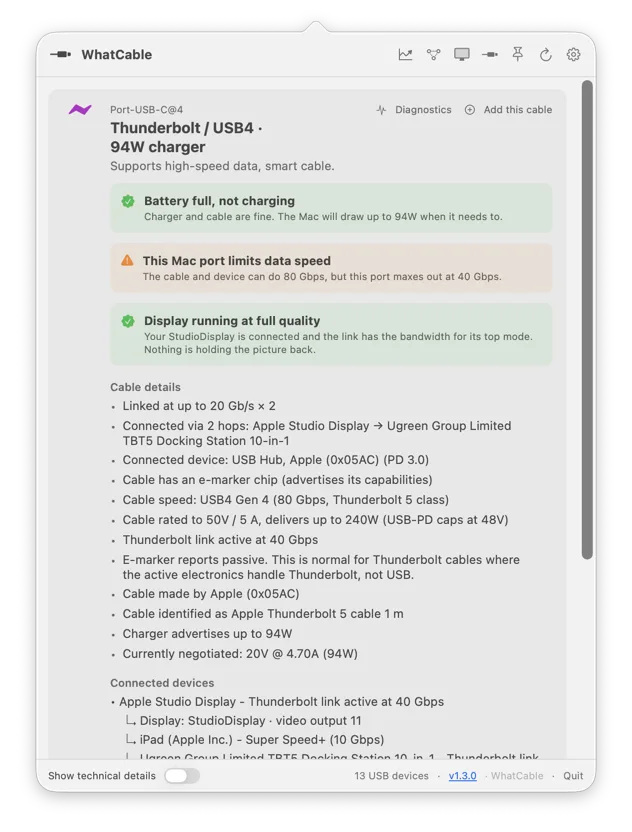
Click the icon. A panel drops down showing one card for each USB-C port on your Mac.
- If nothing is plugged in, each card says "Nothing connected."
- Plug in a cable, charger, or device, and the card updates automatically.
- Each card has a bold headline that tells you, in one line, what's going on with that port.
That's it. No setup, no account, no configuration. Everything updates in real time as you plug and unplug things.
What it shows
Look inside a USB-C cable with our interactive diagram for a visual introduction to charging wires, data wires and the identity chip.
Each port card has a headline at the top. This is the quick answer to "what's plugged in here and is it working well?" Here's what each headline means:
- Nothing connected - the port is empty.
- Charging or Plugged in · battery full - a charger or power source is connected.
- Thunderbolt / USB4 - a high-speed device, dock, or daisy-chain is connected.
- Display connected or USB-C with video - a monitor is plugged in.
- USB device - a regular USB accessory (drive, hub, keyboard, etc.) is connected.
- Slow USB device or charge-only cable - the cable or device is limited to basic speed.
When a charger is attached, the headline adds the charger wattage (e.g. "96W charger"). If the cable is the weak link, it adds the cable wattage too, so you can spot the bottleneck at a glance.
Below the headline
Each card shows more detail depending on what's connected:
- Charging info: how many watts your Mac is drawing, and whether the cable, charger, or Mac itself is limiting the charge speed.
- Mid-session fault warnings: if a cable develops trouble while it's plugged in (a power overcurrent, or the connection dropping and coming back), a banner appears on the port. It catches faults that only show up once a cable is under load. Free for everyone.
- Speed info: a plain-English line explaining what's limiting the data speed, so you know whether a faster cable would actually help.
- Display info: when a monitor is connected, a one-line verdict on whether the link is carrying its full resolution and refresh, or falling short, and what's holding it back.
- Cable info: the cable's maximum speed and power rating, plus the manufacturer if known. If the cable matches one in the built-in cable database, the brand and model are shown too.
- USB-IF certification: cables that carry a certificate ID show a USB-IF certified line naming the manufacturer. The ID comes off the cable itself, and the manufacturer name comes from a list bundled inside the app, so nothing is looked up over the internet. If the cable advertises an ID that USB-IF doesn't publish, you get a neutral line saying so instead. Certification is voluntary and plenty of good cables skip it, Apple's own included, so treat it as a fact about the ID and not a verdict on the cable.
- Charger power levels: every wattage your charger can supply, with the one your Mac picked highlighted. Useful for checking whether a charger really supports the wattage on the box.
- Connected device: the name and type of whatever's plugged in at the other end.
- Connected devices: everything plugged into that port, with each device shown inside the thing it's actually connected to. A dock chained off a display reads as a chain, not a flat pile. Hubs are hidden by default because they're plumbing and make up about half of a typical list. Anything left sitting behind a hidden hub is marked via 2 hubs, so nothing vanishes without explanation, and Show 2 hubs brings them back for that port. Where a port has more than one USB controller, devices are grouped by controller.
Common questions
Is my cable any good?
Look at the port card when the cable is plugged in. If the charging and speed info match what you'd expect, the cable is fine. If WhatCable says the cable is limiting speed or charging power, trying a better cable would help. The app tells you exactly what's being held back.
Why is my laptop charging slowly?
Check the charging line on the port card. It tells you what's to blame:
- "Cable is limiting charging speed" - your cable can't carry the full power your charger offers. A higher-rated cable would fix this.
- "Charging at 30W (charger can do up to 96W)" - your Mac is choosing to draw less than the charger offers. This is normal when the battery is nearly full or the Mac is idle.
- "Charging well at 96W" - everything is matched. You're getting the best charge rate this setup can deliver.
What's an e-marker?
A tiny chip inside some USB-C cables that reports the cable's capabilities (speed, power rating, manufacturer) to your Mac. Not all cables have one. Shorter, lower-power cables often don't, and that's completely normal. High-speed cables (Thunderbolt, USB4) and high-power cables (100W and above) always have one.
Do I need a new cable?
Only if WhatCable shows the cable is holding something back. If the charging line says the cable is the bottleneck, a higher-rated cable would help. If everything shows "charging well" or the speed you expect, keep using what you have.
It says "Nothing connected" but I plugged something in
Try unplugging and re-plugging. Some cables and devices take a moment to be recognised. If it persists, the cable might not be making a solid connection, or the device might not identify itself (some simple chargers don't report anything over the data channel).
If a charger is plugged in (including MagSafe) but the port still shows as not connected, restarting your Mac usually fixes it. macOS occasionally doesn't expose a port's power data until the next reboot, and a restart restores it.
My Mac mini or Studio front USB-C ports show devices but no cable detail
On Apple Silicon desktops, the front USB-C ports are standard USB behind an internal hub, not full USB-C ports with their own controller like the ports on the back. Anything plugged into them now appears under a Built-in USB ports section, but the Mac reports no cable, power, or charging data for them, so there's no e-marker or charging detail to show. The back Thunderbolt ports work fully.
It says "Basic cable" with no details
This is normal for most everyday USB-C cables. Some basic USB 2.0 cables have no identity chip. Full-featured cables and cables carrying more than 3 A require one, but your Mac may not have read it yet. Missing detail alone does not tell you whether the cable is working correctly.
Charging diagnostics
When a charger is connected, WhatCable figures out what's limiting your charge speed and shows it clearly:
- "Charging well at 96W" - the cable, charger, and Mac are all matched. You're getting the best charge rate this setup can deliver.
- "Cable is limiting charging speed" - the cable can't carry the full power your charger offers. For example, a lower-rated cable on a 100W charger will cap you at 60W. A suitably rated cable can remove that limit, if the Mac supports the higher power.
- "Charging at 30W (charger can do up to 96W)" - the Mac is choosing to draw less. This is normal when the battery is nearly full, the Mac is asleep, or macOS is managing battery health.
- "Battery full, not charging" - the Mac is plugged in but the battery is at 100%, so macOS has stopped charging the battery; the Mac may still use power from the charger. This is by design.
Below the charging line, you'll see the charger's power levels: the voltage and current options the charger offers (for example, 5 V, 9 V, 15 V or 20 V at specified current levels), with the active one highlighted. This is useful for confirming whether a charger actually supports what it says on the box.
Cable trust signals
WhatCable checks a cable's reported data against the official USB specification. When something looks unusual, an orange banner appears with the details. This is not proof that a cable is fake or dangerous. It means something in the reported data doesn't match expectations.
Read missing information and contradictory information differently:
- Missing manufacturer or certificate: a gap in the report does not by itself mean the cable is faulty or fake.
- Invalid or contradictory values: speed, power or other fields that cannot be interpreted consistently deserve closer investigation.
- A speed different from the label: the port or device may set a lower limit. A compatible passive cable can also work faster with newer signalling than its older identity suggests.
Technical detail
VID identifies a vendor, PID identifies a product, and XID is the certification identifier in the identity response. WhatCable considers the fields together. An informational note is different from a warning about malformed or contradictory data.
Notifications
WhatCable can send a notification whenever something is plugged in or unplugged. This is off by default. Turn it on in Settings.
When you enable it, macOS will ask for permission. Notifications are silent (no sound) and show the device name and speed for connections. They work even when the panel is closed.
Settings
Click the gear icon in the top corner of the panel to open Settings.
Behaviour
- Launch at login: start WhatCable automatically when you log in.
- Show in menu bar: on by default. Turn it off to run WhatCable as a regular Dock app with its own window instead.
Display
- Show technical details: shows the raw hardware data underneath each port card. Mainly useful for developers or when filing a bug report.
- Hide empty ports: only show ports that have something plugged in.
- Skip deep USB probing: off by default. WhatCable reads a small capability descriptor from each USB device so the Pro diagnostics can show what alt modes it supports. That read puts a tiny bit of traffic on the USB bus, and a few KVM switches and hubs react badly to it (a relay clicking, or the keyboard and mouse dropping out). Turn this on to stop that read entirely. You lose the alt-mode detail for that device, nothing else.
- Font size: make the text bigger or smaller (80% to 140%).
- Opacity: how solid the WhatCable window is. Turn it down to see what's behind the panel while you work.
- Menu bar icon: choose which icon WhatCable uses in the menu bar, so it fits in with whatever else you keep up there.
- Show charging watts in the menu bar: when something is charging, show the live wattage next to the menu bar icon. Pick Number (a watts readout) or Bar (a small fill gauge).
- Language: override the system language. 19 languages available: Deutsch, English, Español, Français, Italiano, Latviešu, Nederlands, Norsk Bokmål, Polski, Português (Brasil), Türkçe, Русский, Українська, हिन्दी, 日本語, 한국어, 中文 (简体), 中文 (繁體), and Հայերեն. Takes effect on next launch.
Notifications
- Notify on cable changes: get alerts when something is plugged in or unplugged.
- Notify on app updates: get a notification when a newer version of WhatCable is available.
Community
- Contribute Diagnostic Data: optionally submit anonymous hardware data to help improve the app. Nothing is sent unless you start a run yourself.
Pro
- Shows a link to upgrade if you don't have Pro yet. With Pro activated, this section has toggles for Pro-specific features.
Right-click menu
Right-click (or Control-click) the menu bar icon for quick actions:
- Refresh: re-scan all ports now.
- Keep window open: pin the panel so it stays visible. Useful for comparing cables or taking screenshots.
- Settings: open the Settings panel.
- Power Monitor Pro: open a live power chart window.
- Negotiation Diagnostics Pro: open the detailed breakdown of what each port negotiated.
- Display Diagnostics Pro: open the comparison of a monitor's mode against what the DisplayPort link is carrying.
- Saved Cables Pro: open your saved-cables list and per-cable history.
- Licence Pro: enter or manage your Pro licence key.
- Check for Updates: look for a newer version.
- Contribute Diagnostic Data: submit anonymous hardware data to help improve the app.
- About and WhatCable on GitHub: links to the project.
- Quit: close the app.
Pro features
WhatCable Pro is a one-time purchase that adds deeper diagnostics on top of everything in the free app. All free features stay free forever. Pro adds the following:
Diagnostics
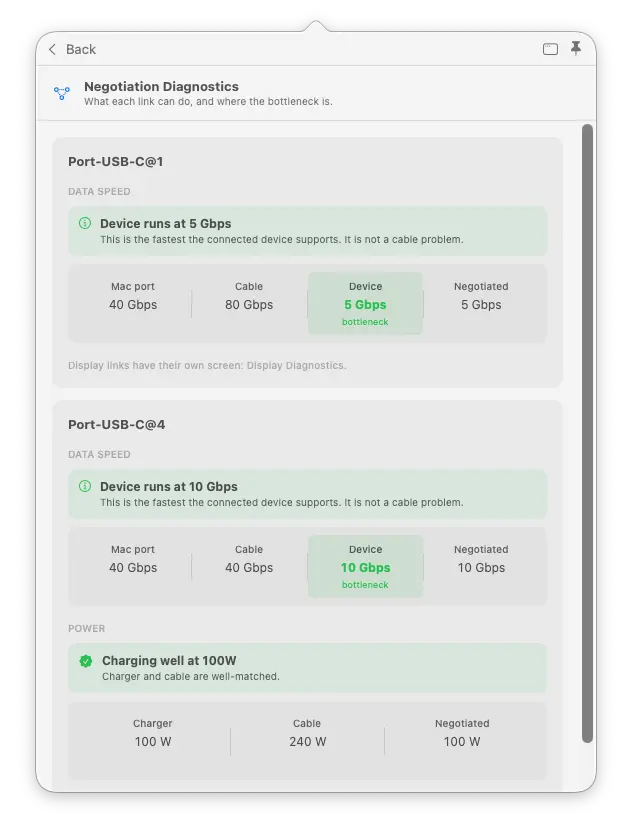
Negotiation Diagnostics Pro
Find out which part of the connection is holding it back: your Mac’s port, the cable or the connected device.
Technical detail
“Negotiated” means the speed or power the connected devices have agreed to use. WhatCable compares this with the reported capabilities of each part, and identifies a limit when the available evidence supports it.
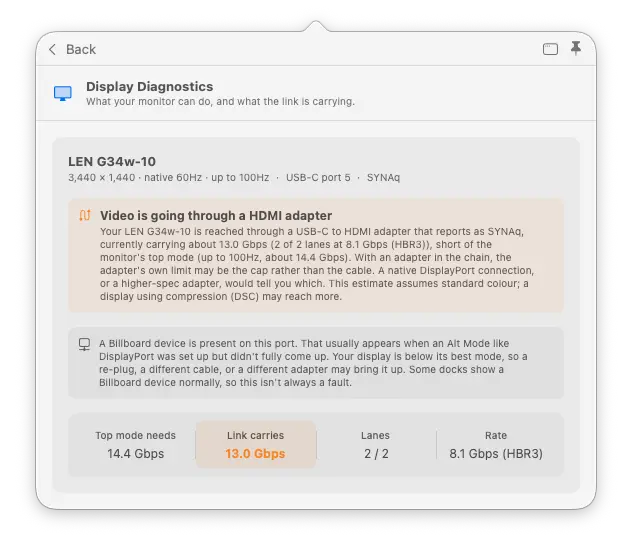
Display Diagnostics Pro
Find out why your screen is not as sharp or smooth as expected. Compare its picture settings with what the screen and its connection can support.
Technical detail
Resolution describes picture detail; refresh rate is how often the picture updates. Display Diagnostics compares these with the monitor’s reported modes and the DisplayPort connection’s lanes and rate. It accounts for Display Stream Compression (DSC), which fits the picture into less bandwidth, and adapter information when available. A lower link rate can be appropriate for the selected picture setting.
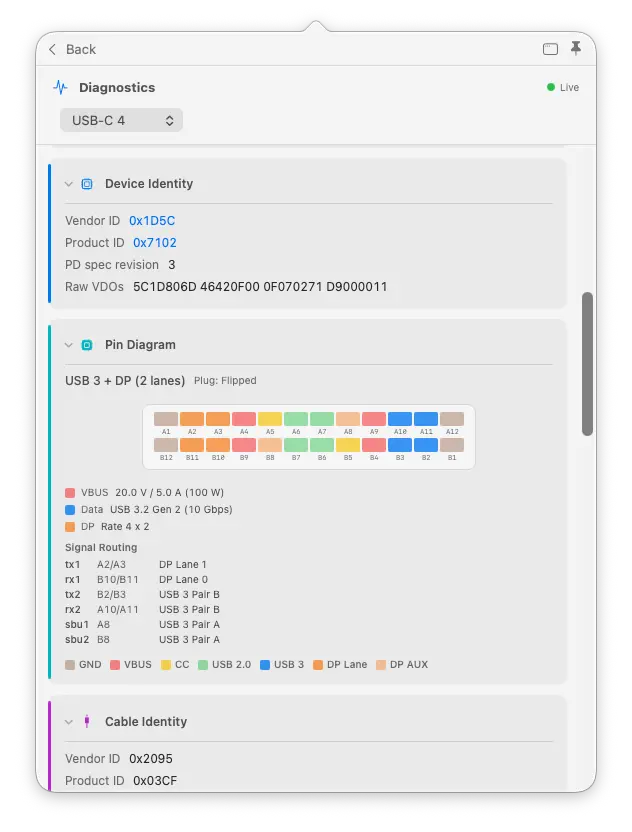
DP Alt Mode details Pro
See how the picture travels from your Mac to the screen, along with the display information your Mac can read.
Technical detail
DisplayPort Alt Mode carries DisplayPort video through USB-C. The details include lane count (the signal paths in use), link rate (their speed), and whether video travels directly or through a Thunderbolt tunnel. EDID is the monitor’s identity and capabilities data, which can include its model, manufacturer and year.
Cable history
Cable history Pro
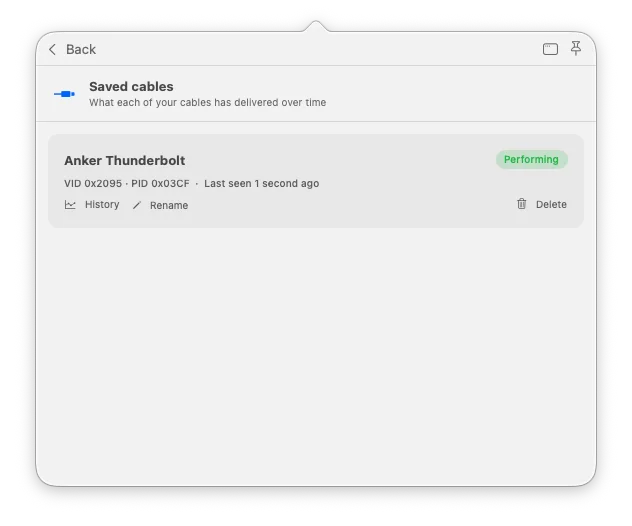
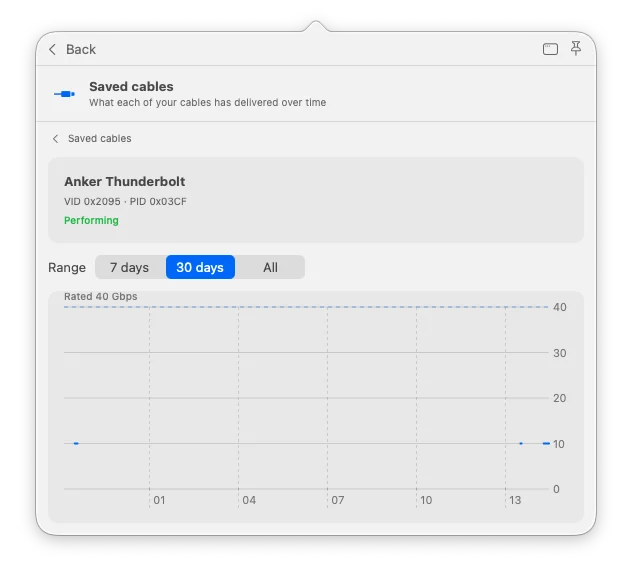
Add a cable, give it a name, and WhatCable starts keeping a record of how it actually performs over time, not just a snapshot of the moment it's plugged in. It recognises the cable on later connections from its e-marker fingerprint and builds up a timeline: when you last used it, what it negotiated each time, and whether it has been misbehaving.
You get a saved-cables list, an all-time summary per cable (best and typical data speed, charging power, fault counts), and a verdict right on the port card so you don't have to dig. A per-cable graph plots its data speed over time against its rated ceiling, with 7-day, 30-day, and all-time views. Cables you haven't added still get the live reading as before, they just aren't recorded. Cables with no e-marker chip at all can't be added: with nothing to recognise them by, there's no way to tell one from another on a later connection. Localised in 19 languages.
Power & charging
Live power metering Pro
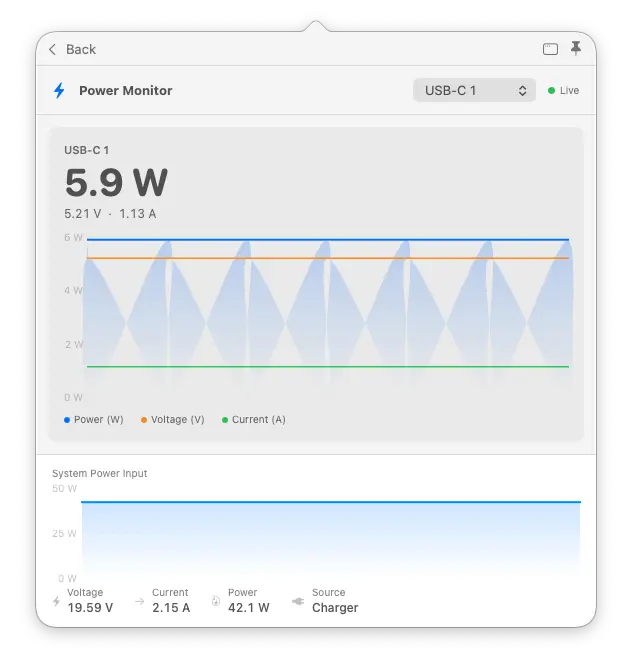
See how much power your Mac reports through each port, with readings updated every two seconds.
Technical detail
Watts (W) measure power, amps (A) measure current and volts (V) measure voltage. Where live per-port readings are unavailable, WhatCable shows the agreed maximum instead. That limit is not the same as the power being used at that moment.
PD contract inspector Pro
See which charging options your charger offers and which one your Mac is using. This helps explain why a powerful charger may be charging at a lower rate.
Technical detail
USB Power Delivery (PD) is how compatible devices agree charging power. The agreement is called a power contract. Power Data Objects (PDOs) describe the available charging profiles. The inspector shows voltage, current and available profiles, and flags capability mismatches.
Power monitor window Pro
Watch a chart of power and voltage over time while you try a charger or cable. Keep the window open beside your work.
Technical detail
The chart shows the available per-port readings. Where the Mac does not provide live power draw, the displayed negotiated maximum is the agreed limit, not measured consumption.
PD event trace Pro
Follow what happened when you connected a cable: the charging setup, any interruptions and the final agreement.
Technical detail
The USB Power Delivery event trace shows the protocol messages and events reported for a port, including attachment, contract negotiation and hard resets that restart power negotiation.
Cable resistance estimation Pro
Estimate how much the cable resists the flow of electricity. This can help you investigate power loss while testing a cable.
Technical detail
The estimate uses multiple power samples and is shown in milliohms (mΩ), a unit of electrical resistance. It is an estimate, not a direct measurement or proof that a cable is worn.
Cable & port health
Port health counters Pro
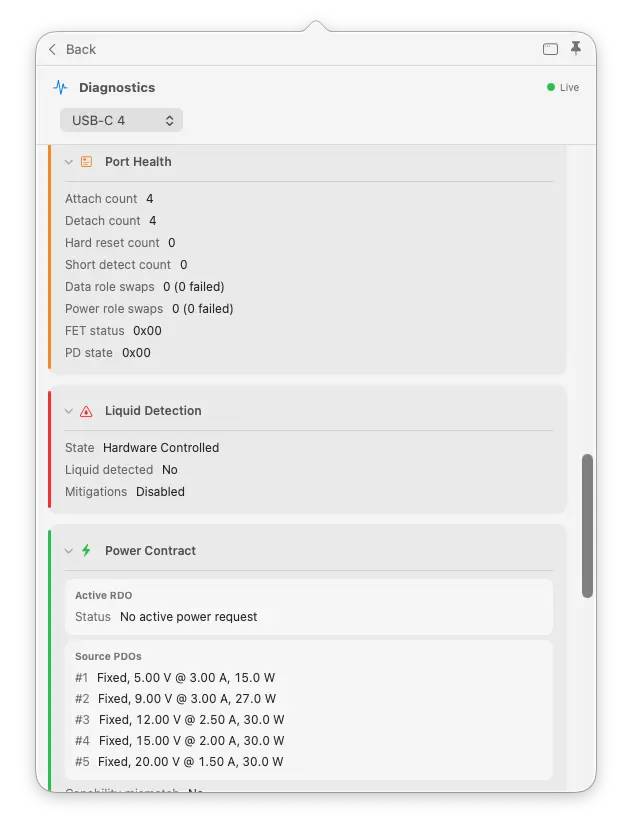
Look for repeated disconnects, restarts and electrical errors reported by a port. Changes over time can help you investigate an unreliable connection.
Technical detail
Counters can include attach/detach events, hard resets, power-role swaps and internal communication or switching errors. A power-role swap changes which device supplies power. These are reported events, not a complete lifetime wear record or proof that the cable caused a fault.
Liquid detection Pro
Check the liquid-detection state reported for a USB-C port when investigating an intermittent connection.
Technical detail
WhatCable displays the available liquid-detection controller state, also called LDCM. This is a report from the Mac’s hardware, not a physical inspection of the port.
CC advertisement level Pro
See how much current the port tells a connected device it can supply.
Technical detail
CC is the Configuration Channel, a USB-C control connection. Its advertised current level is a setup signal; it is separate from a later USB Power Delivery charging contract.
Raw cable identity Pro
Read the exact information reported by the cable’s identity chip, alongside WhatCable’s explanation.
Technical detail
The chip is called an e-marker. Its structured identity fields include Vendor Defined Objects (VDOs). These are useful when investigating a report or sharing diagnostic details with a developer.
In the terminal and on the desktop
CLI monitor mode Pro
whatcable --monitor streams live power and cable state to your terminal. whatcable --monitor-json outputs the same data as JSON for scripting.
TUI dashboard (CLI) Pro
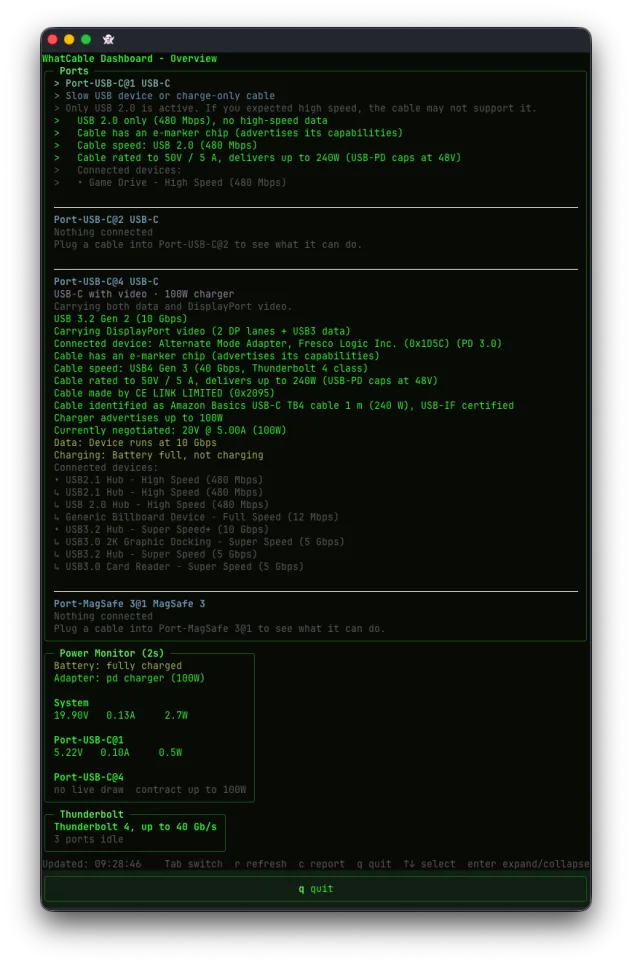
A live full-screen terminal view of ports, power, and Thunderbolt, for the SSH and tmux crowd. Three screens: Overview, Negotiation, and Power. Tab cycles screens, arrow keys select ports, q quits. Run whatcable --dashboard.
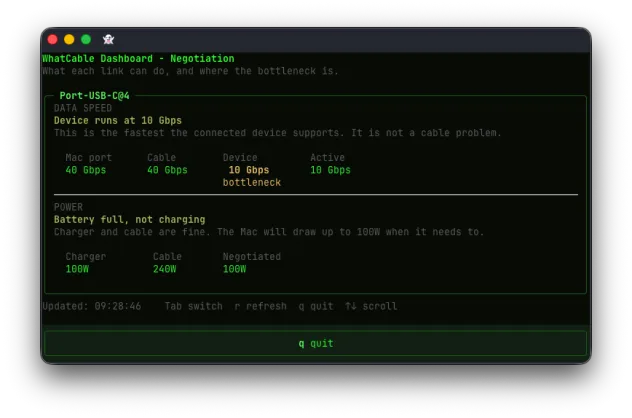
The Negotiation screen breaks down each link: what the Mac port, cable, and device each support against what was actually negotiated, with the bottleneck called out in plain English.
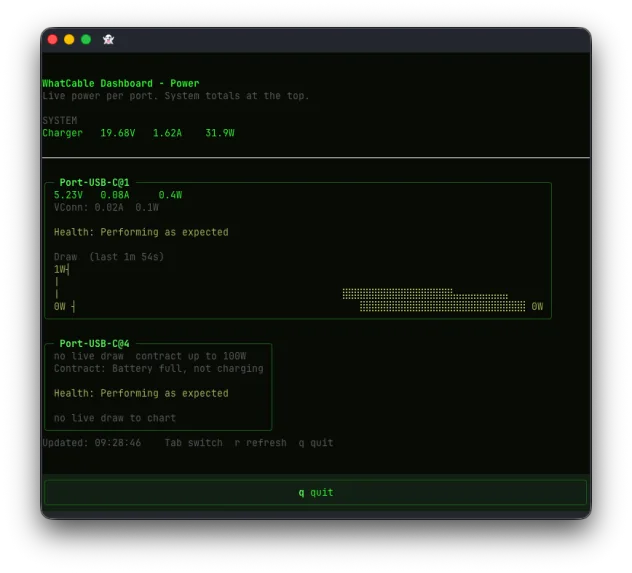
The Power screen shows live draw per port with a small chart, system totals at the top, and a plain cable-health verdict: it watches how a cable behaves over the session and says so if one isn't performing.
Widget power sparkline Pro
The desktop widget shows a power chart alongside cable status, updated periodically by macOS on its own schedule (not continuously). Glance at your desktop and see charging trends without opening anything.
Troubleshooting
My cable shows as "Basic cable"
This is normal for most everyday USB-C cables. Only higher-rated cables (Thunderbolt, USB4, or cables rated for 100W+) are required to have a chip that reports detailed information. Your cable still works, there's just nothing extra to read.
Some cables do have the chip, but macOS only reads it when the connection needs the cable's identity: a charge drawing more than 3A (a 5A cable on a high-wattage charger), or a Thunderbolt / USB4 link. On a low-power charger or a plain data connection, macOS may never query the chip, so there's nothing to show even though the cable is marked. Try plugging in a higher-wattage charger (60W or above), or connect it to a Thunderbolt device, and check again.
Vendor shows as "Unregistered / unknown"
WhatCable looks up manufacturer names from the official USB industry list, which is bundled with the app. If the name isn't showing, it means the manufacturer either isn't registered or registered after this version of the app was built. It doesn't mean the cable is fake. The list is updated with each app release.
Doesn't work on my Intel Mac
WhatCable only works on Macs with Apple Silicon (M1, M2, M3, M4, M5). Intel Macs use a different USB-C controller that doesn't expose the cable data WhatCable reads. There's no workaround for this.
My keyboard or mouse stops working, or a KVM switch keeps clicking, when WhatCable runs
A small number of KVM switches and USB hubs react badly to WhatCable reading capability information from the devices behind them. The switch may click its relay over and over, or your keyboard and mouse may drop out while WhatCable is open. If that happens, go to Settings and turn on Skip deep USB probing. WhatCable will stop putting any traffic on the USB bus, which fixes it. In the CLI, run whatcable --no-usb-probe. The only thing you lose is the alt-mode detail in the Pro diagnostics for those devices.
I can't see the icon in the menu bar
On macOS 26 (Tahoe), check this first. Go to System Settings > Menu Bar and scroll down to "Allow in the Menu Bar". Find WhatCable in that list. While that switch is off, macOS will not show the icon whatever WhatCable does, so switch it on and open WhatCable again. If it already looks switched on, switch it off and back on anyway: one reporter fixed exactly this problem that way.
If that wasn't it, your menu bar may just be full. When there is no room, macOS may hide the icon behind the notch or other apps. Try closing some menu bar apps, or switch WhatCable to Dock mode in Settings if space is tight.
Notifications aren't showing up
Check two things. First, make sure notifications are turned on in WhatCable's Settings. Second, go to macOS System Settings > Notifications > WhatCable and make sure alerts are allowed. If you clicked "Don't Allow" when first asked, you'll need to re-enable it here.
"Report this cable" isn't showing any data
The report feature needs data from the cable's chip to work. If no data was read, there's nothing to report. This happens when the cable doesn't have a chip (see "Basic cable" above) or macOS hasn't queried it yet. Try a higher-wattage charger (60W+) to trigger the read.
App opens but nothing appears
If you launch WhatCable and nothing shows up (no menu bar icon, no window), try these steps in order:
- Check macOS isn't blocking the icon. On macOS 26 (Tahoe), go to System Settings > Menu Bar, scroll down to "Allow in the Menu Bar", and make sure WhatCable is switched on. If it already is, switch it off and back on again. This has fixed it for someone reporting these exact symptoms. It is a macOS setting rather than a WhatCable one, so reinstalling WhatCable does not change it.
- Check whether WhatCable is actually running. Open Activity Monitor (Applications > Utilities) and search for "WhatCable". If it is listed, WhatCable is running and its icon is not being shown, so work through the rest of this list. If it is not listed, open WhatCable again from Applications and watch whether it appears in the list and stays there. If it never appears, open Console (Applications > Utilities), click Crash Reports in the sidebar, and include anything named WhatCable in your bug report if there is one.
- Check the menu bar isn't full. The icon may be hidden behind the notch or other apps. Try closing a few menu bar apps and relaunching WhatCable.
- Quit and relaunch. Open Activity Monitor, search for "WhatCable", force-quit it if it's running, then open it again from Applications.
- Try the CLI. Open Terminal and run
whatcable. If that prints port data, the hardware access is working and the issue is with the menu bar UI. Include the CLI output when filing a bug report. - Collect diagnostic logs (see below) and include them in a bug report.
Collecting diagnostic logs
WhatCable logs key startup steps to the macOS system log. If the app isn't behaving as expected, these logs help us figure out where it gets stuck. To capture them:
- Quit WhatCable if it's running.
- Open Terminal (in Applications > Utilities).
- Paste this command and press Enter:
log stream --predicate 'subsystem == "uk.whatcable.whatcable"'
You'll see "Filtering the log data..." and then it waits. - Open WhatCable from your Applications folder.
- Wait a few seconds. Log lines will appear in Terminal showing what the app did during launch.
- Copy everything that appeared and include it in your bug report.
Press Ctrl+C in Terminal to stop the log stream when you're done.
Widget not appearing after an update
If the desktop widget disappears after updating WhatCable (especially via Homebrew), macOS may have stale references to the old version. This was fixed in v0.14.1, which re-registers the widget on every launch. If you're on 0.14.1 or later and the widget is still missing:
- Right-click the desktop, choose Edit Widgets, and remove the WhatCable widget.
- Quit and relaunch WhatCable.
- Add the widget again from the widget gallery.
Engineer mode
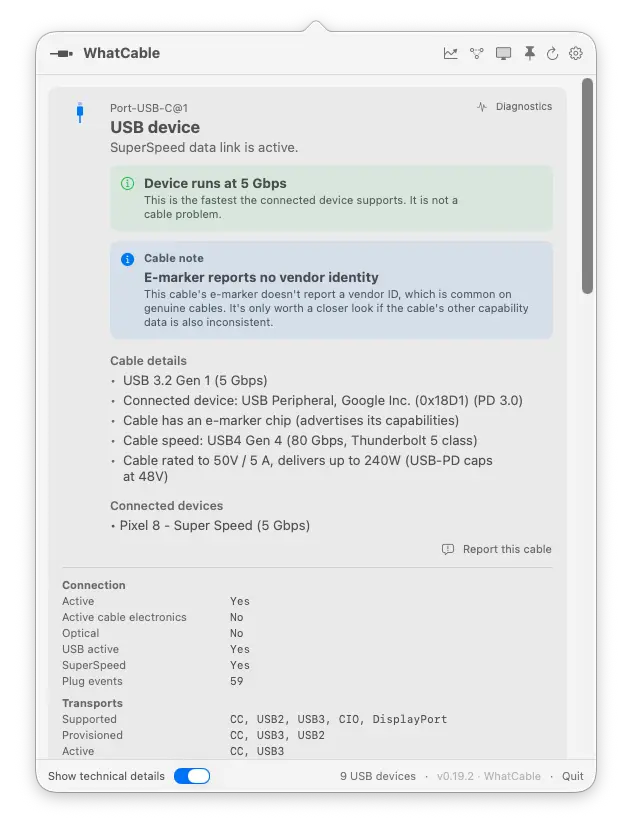
For developers, IT staff, or anyone who wants the raw data: hold Option and click the menu bar icon to show the underlying hardware properties for each port. This includes register values, protocol fields, and the full USB device tree.
You can also turn this on permanently in Settings ("Show technical details"). When a Thunderbolt or USB4 device is connected, this mode also shows the Thunderbolt link tree with per-lane speed and generation info.
Contribute data
You can optionally submit anonymous hardware data to help WhatCable support more Mac models and cable types. Nothing is collected in the background. A submission only happens when you choose to start one and approve it.
Three ways to start a submission:
- Right-click the menu bar icon and choose Contribute Diagnostic Data
- Open Settings and look in the Community section
- From a terminal:
whatcable --test-kit
Each method shows a consent screen first, explaining exactly what will be sent.
What is sent
- Hardware data from your Mac's USB-C ports (the same data the app reads, in raw form).
- Your macOS version and chip type (e.g. Apple M3 Pro).
- A scrambled version of your Mac's ID, used only to group the data together. The actual ID is never stored.
What is not sent
- No names, email addresses, your Mac's serial number, or personal data.
- No analytics or background tracking. The only network request WhatCable makes on its own is a six-hourly update check.
- Running it again from the same Mac replaces your previous submission rather than adding to it.
Good to know
- WhatCable checks for updates once every six hours. No analytics, no tracking. See the privacy policy.
- WhatCable reads data from the Mac's USB-C port, the connected device or charger, and the cable itself, so it can cross-check what each part of the chain reports. If a cable claims high specs but the negotiated result is lower, WhatCable will show you where the mismatch is.
- The cable database is built from community-reported cables. If yours isn't listed, use "Report this cable" in the app to contribute.
- WhatCable includes a command-line tool for developers. It ships inside the app and is on your PATH automatically if you installed via Homebrew.